
Easily create new reports by simply changing the data displayed in the rows.
1. Analyze by - for a simple change of row data
Some examples of changing the Analyze by field.
Sales Workbooks
- Open the Customer Tab in the Analyse Sales & Margins Workbook.
- This defaults to Analyse by Name (Customer Name).
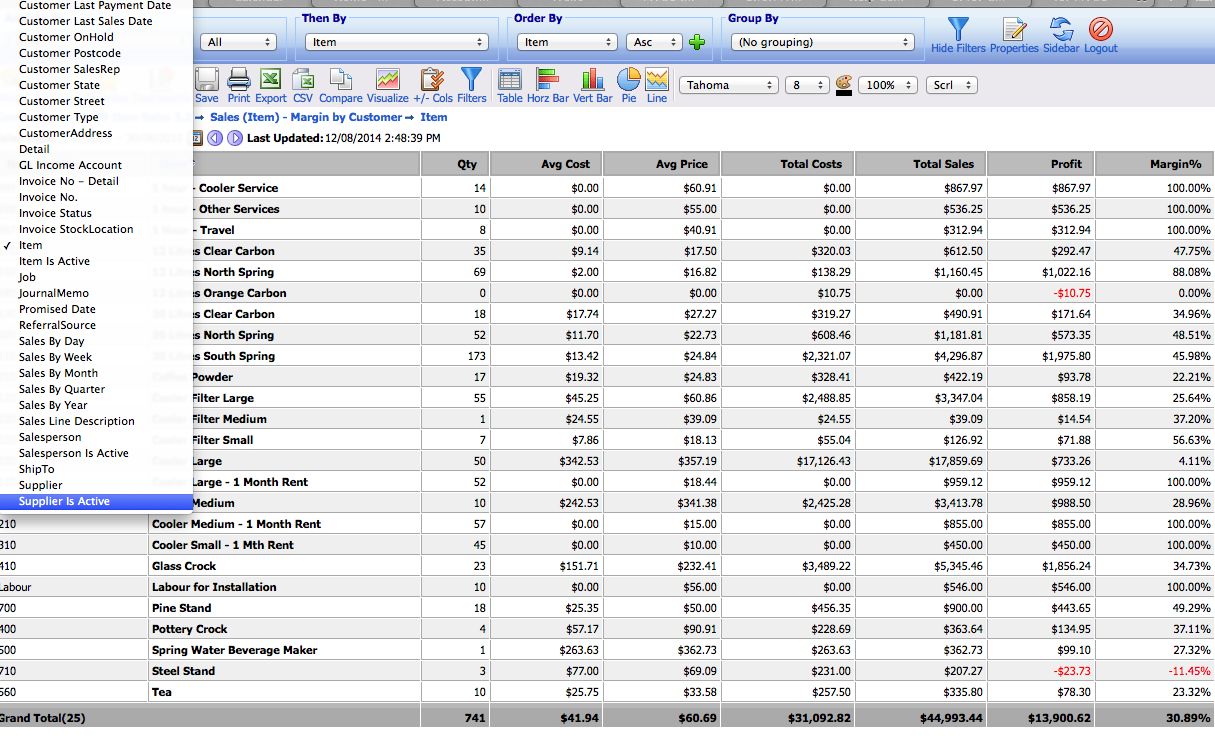
- Click on the Analyze by field
- Select another dimension to display that field in the rows e.g. Select Item to see sales and margins by Item
- Use the Search box to quickly look-up other available dimensions
- Rows are determined by the Analyze By Field so Click on the drop down arrows in the Analyze by field. Choose Items to see Margin by Item or pick any of the many other options e.g. State, Salesperson, Referral Source etc.
- You now have a Margin by Item report.
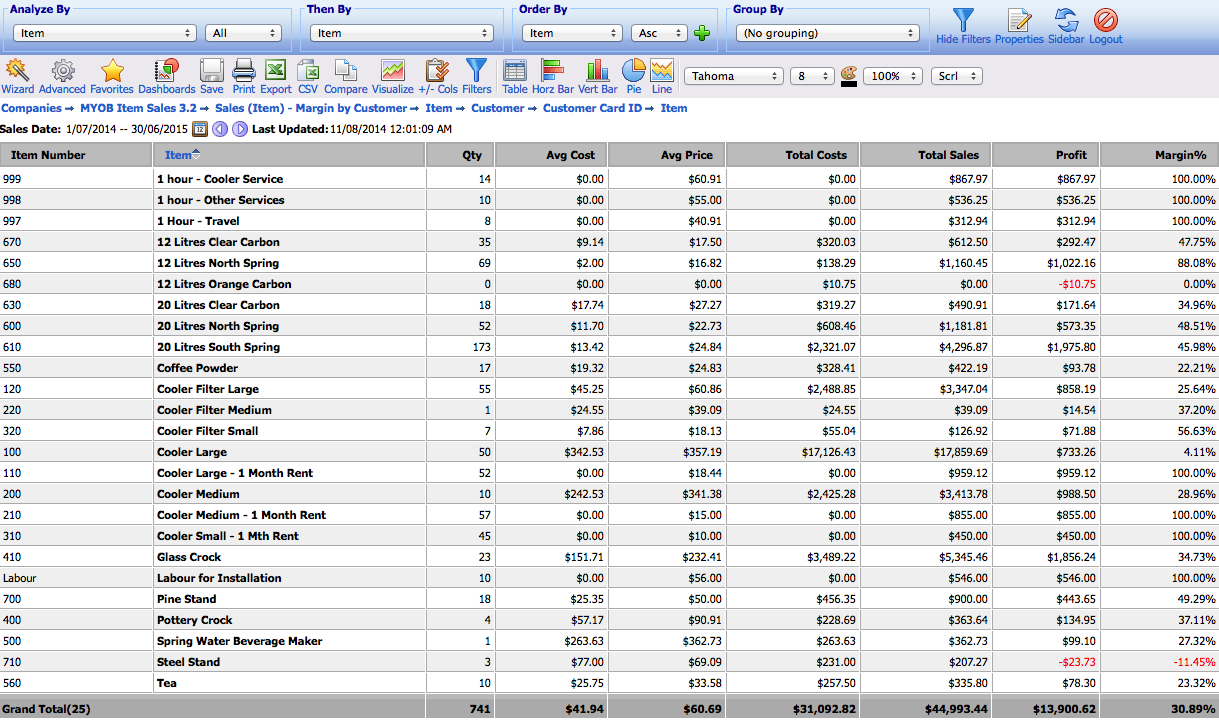
- Save the new Favourite, give it a name and it will be there for you to use again and again.